

How to Organize Receipts by Category
A simple system for sorting expenses into meaningful categories that match your accounting needs and business structure.

Your scanner isn't picking up faded receipts? We've got solutions. This guide covers the most common problems and practical fixes that actually work.
Scanning receipts sounds simple. Point scanner, click button, done. But it's not always that straightforward. Thermal paper fades. Lighting changes. Your scanner's calibration drifts. We've seen it all, and we're here to help you troubleshoot the issues that actually matter.
The good news? Most scanning problems have straightforward fixes. You don't need a technician or expensive equipment upgrades. You just need to know what's happening and why.
Thermal receipts fade over time — it's just chemistry. The heat-sensitive coating breaks down when exposed to light, heat, or even humidity. You scan a receipt that looks perfectly fine to your eye, but the scanner can't read the text clearly.

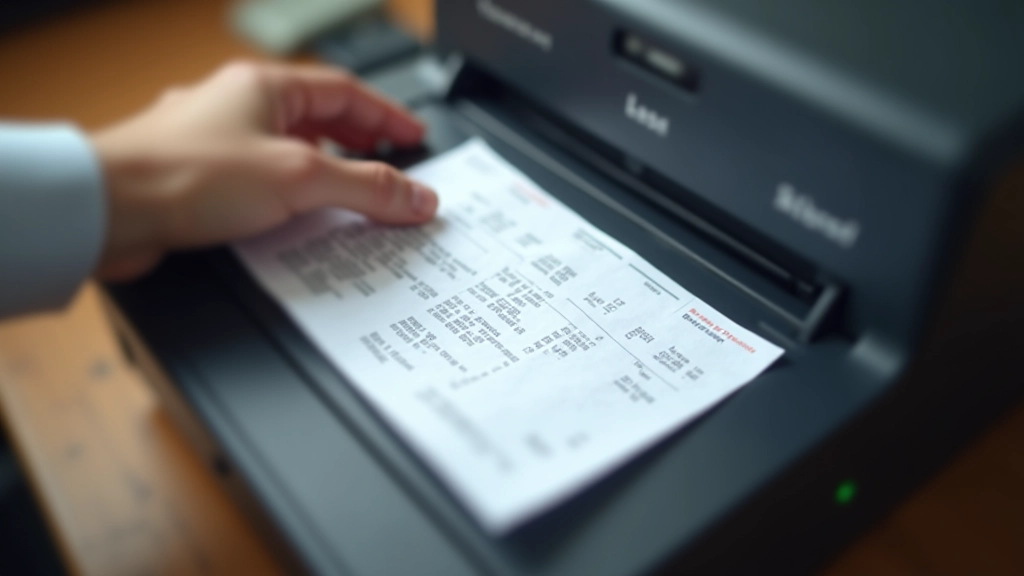
The receipt comes out tilted, rotated 90 degrees, or completely backwards. This usually happens when the receipt isn't aligned properly with the scanner bed, or your document feeder is misaligned.
It's frustrating because the image itself is fine — it's just in the wrong orientation. Your categorization software might struggle with rotation, especially if it's doing automatic text detection.
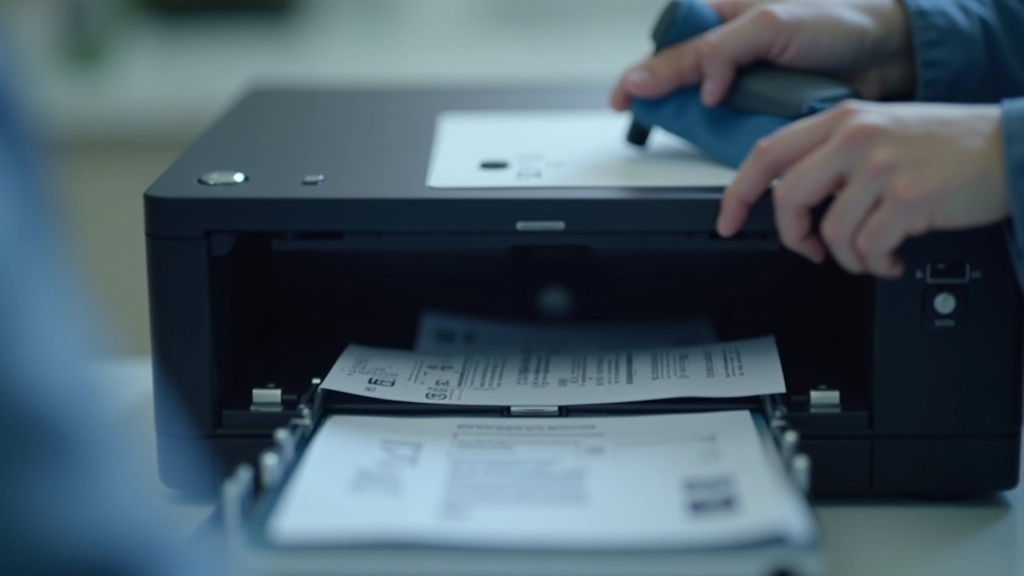
You put one receipt in, but the scanner grabs two at once. Or it jams completely and you're wrestling with the feeder trying to get it unstuck. Double feeds happen when the rollers aren't gripping properly, or when receipts are stuck together.
Thermal receipts are thin and prone to sticking together, especially if they're still warm from the register or stored in humid conditions.
This guide covers common scanning troubleshooting for expense management purposes. If your scanner has a hardware malfunction, contact the manufacturer or a qualified technician. Specific scanner models may have different settings and calibration procedures — consult your user manual for model-specific guidance. For critical financial documents, always verify scanned data matches the original receipt before submitting for expense reimbursement.

The scan comes out fuzzy or the resolution is too low to read clearly. This usually means either the scanner isn't focused properly, the resolution settings are too low, or the receipt is moving during the scan.
Modern scanners need to be set to at least 300 DPI (dots per inch) for receipt scanning. Anything lower and you'll struggle with OCR — especially on small print.
Most scanning issues come down to three things: cleanliness, alignment, and settings. Keep your scanner clean. Align your receipts properly. Use the right DPI and brightness settings. You'll solve 90% of your problems right there.
If you're still having trouble after working through these fixes, it might be time to consider upgrading your scanner. Technology moves fast, and a modern receipt scanner (dedicated or multifunction) can handle thermal paper way better than older models. But before you invest, try these troubleshooting steps. They work.
Ready to improve your entire scanning workflow?
Explore automated scanning workflows
Editorial Team
Written by the Receipt Flow editorial team, focused on practical, easy-to-follow guidance for expense management.
A simple system for sorting expenses into meaningful categories that match your accounting needs and business structure.

Learn how to configure automatic receipt capture and categorization. We'll walk you through the setup process step by step.

Don't know where to start with paperless expense management? This covers the basics of team-based receipt handling.